
Unverwaltete Apps an iOS-Geräte verteilen

(tl;dr vowe: Abdelkader erklärt, wie man zentral Apps verteilen kann, die keinen Zugriff auf Geschäftsdaten haben. Typisches Beispiel: Social Media Apps für Social Media Teams im Marketing.)

Apple ermöglicht in Verbindung mit einer MDM-Lösung die Verteilung von Apps auf iPhone und iPad. Die App-Verteilung gehört zu den Kernfunktionen eines Mobile Device Managements: Geschäftlich erforderliche Anwendungen werden zentral bereitgestellt und können automatisch installiert werden.

Apps, die über das MDM automatisch installiert werden, erhalten den Status managed und können auf dienstliche Daten zugreifen. Diese Daten werden als managed Data klassifiziert. Die Trennung zwischen privaten (unmanaged) und geschäftlichen (managed) Bereichen ist dabei ein zentrales Sicherheitsmerkmal von iOS und iPadOS. Über MDM-Richtlinien lässt sich sicherstellen, dass managed- und unmanaged-Daten strikt getrennt bleiben. Beispielsweise kann verhindert werden, dass ein Dokument aus einem geschäftlichen E-Mail-Konto in eine private Messaging-App exportiert wird. Auch die Nutzung der Zwischenablage zwischen verwalteten und unverwalteten Apps kann unterbunden werden.

Es existieren Szenarien, in denen Organisationen Apps auf iPhone oder iPad bereitstellen möchten, ohne diesen Anwendungen Zugriff auf geschäftliche Daten zu gewähren. Ein typisches Beispiel ist ein Social-Media-Team, das verschiedene Apps benötigt. Diese Apps sollen für die tägliche Arbeit verfügbar sein, jedoch keinen Zugriff auf dienstlichen Daten erhalten. Zur Umsetzung dieses Szenarios muss die MDM-Lösung „Managed Distribution for Users“ unterstützen. In BlackBerry UEM ist diese Funktion implementiert.

Im Folgenden werden die technischen Voraussetzungen und Konfigurationsschritte beschrieben. Damit die Verteilung unverwalteter Apps über den BlackBerry UEM funktioniert, muss der BlackBerry UEM in der Version 12.23 QF2 (On-Premise oder Cloud) installiert sein und an den Apple Business Manager angebunden sein. Im BlackBerry UEM muss auch ein gültiges VPP-Token eingerichtet sein. Über das Apple Volume Purchasing Program werden die zu verteilenden Apps beschafft. In meinem Beispiel verwende ich ein per Apple Device Enrolment am UEM aktiviertes iPhone mit iOS 26.3. Mit einer reinen MDM-Aktivierung würde es auch funktionieren. Da die Apple für die unverwaltete App Installation einen Apple Account erfordert, benötigen wir einen Persönlichen oder Managed Apple Account. Seit September 2025 erlaubt Apple im Apple Business Manager verwaltete Endgeräte auf die Nutzung mit Managed Apple Accounts einzuschränken. Entspricht die E-Mail-Adresse des BlackBerry-UEM-Benutzers dem Managed Apple Account, führt BlackBerry UEM das VPP-Enrolment automatisch durch. Bei einem persönlichen Apple Account oder wenn sich die Benutzernamen unterscheiden, muss das Enrolment manuell abgeschlossen werden. Der Benutzer bekommt hierfür im Enterprise App Store (Work Apps) einen Hinweis. Diese Setup ermöglicht die benutzerbasierte App-Zuweisung und gleichzeitig wird der Zugriff auf die managed Data verhindert. In diesem Beispiel werden die Apps Ice Cubes for Mastodon und Bluesky als unverwaltete Anwendungen bereitgestellt. Beide Apps wurden im Apple Business Manager in ausreichender Lizenzanzahl für den Standort des BlackBerry UEM-Servers beschafft.

Zur strukturierten Zuweisung wird eine Benutzergruppe mit der Bezeichnung „Social Media Apps“ erstellt, der anschließend beide Anwendungen zugewiesen werden. Für jede App ist die Disposition auf „Optional“ zu setzen und das Target auf „Personal“ zu konfigurieren. Nur mit diesen Einstellungen ist gewährleistet, dass die Anwendungen nach der Installation durch den Benutzer unverwaltet bleiben. Da es sich um unverwaltete Apps handelt, können weder App-Configuration-Profile noch Per-App-VPN-Profile zugewiesen werden.
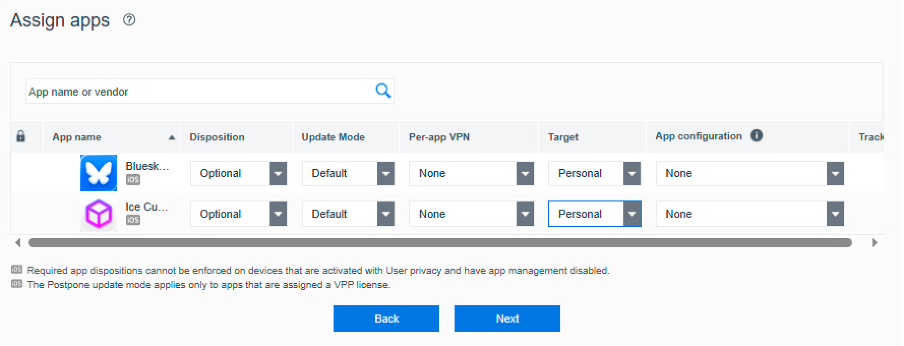
Screenshot BlackBerry UEM-Konsole – Disposition Optional & Target Personal

Die Lizenzierung erfolgt jeweils über eine VPP-Benutzerlizenz. Nach Erstellung der Gruppe werden die entsprechenden Benutzer hinzugefügt.
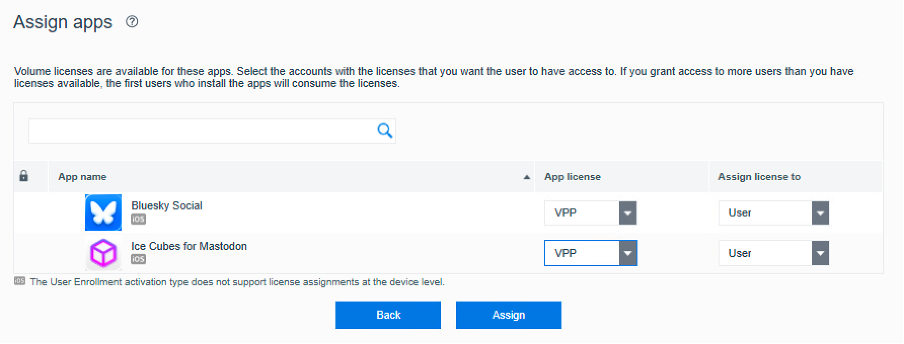
Screenshot BlackBerry UEM-Konsole – Apps mit VPP-Benutzerlizenz

Auf dem iPhone meldet sich der Benutzer im App Store mit seinem Apple Account an. In diesem Szenario wird ein Managed Apple Account verwendet. Managed Apple Accounts können selbst keine Apps beschaffen, weshalb der Einsatz von Managed Distribution for Users der einfachste Weg ist diesen Accounts App-Lizenzen zuzuweisen. Anschließend öffnet der Benutzer auf dem durch BlackBerry UEM verwalteten iPhone den Enterprise App Store mit der Bezeichnung Work Apps. Dort erscheinen die zugewiesenen Anwendungen im Reiter New. Über den Button Prepaid erfolgt die Weiterleitung in den Apple App Store, von dem aus die Installation gestartet werden kann. Sollte der Download-Button noch deaktiviert sein, empfiehlt es sich, den Vorgang nach einigen Minuten zu wiederholen, da die VPP-Infrastruktur von Apple in Einzelfällen etwas Zeit benötigt, um Lizenzen den jeweiligen Apple Accounts zuzuweisen.
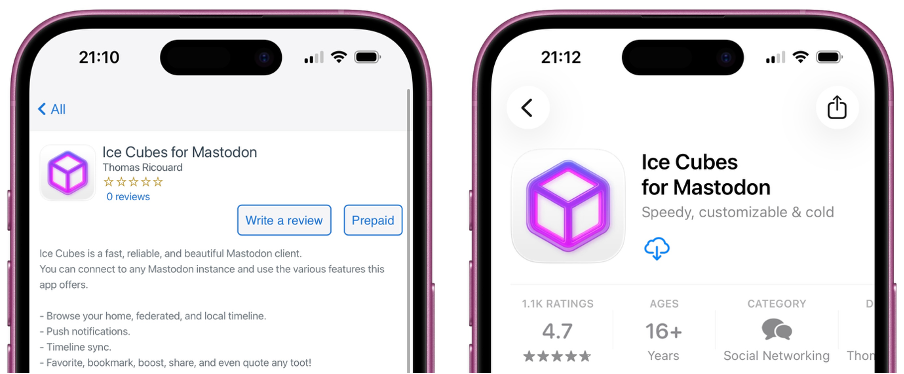
Screenshot iPhone – Work Apps und Apple App Store mit Ice Cubes for Mastodon App

Nach erfolgreicher Installation lässt sich im MDM-Profil unter „Apps“ verifizieren, dass die über Managed Distribution for Users bereitgestellten Apps dort nicht aufgeführt sind. Sie gelten somit als unverwaltet und besitzen keinen Zugriff auf geschäftliche Daten. In diesem Beispiel sind nur die vier Secu-Apps verwaltet.
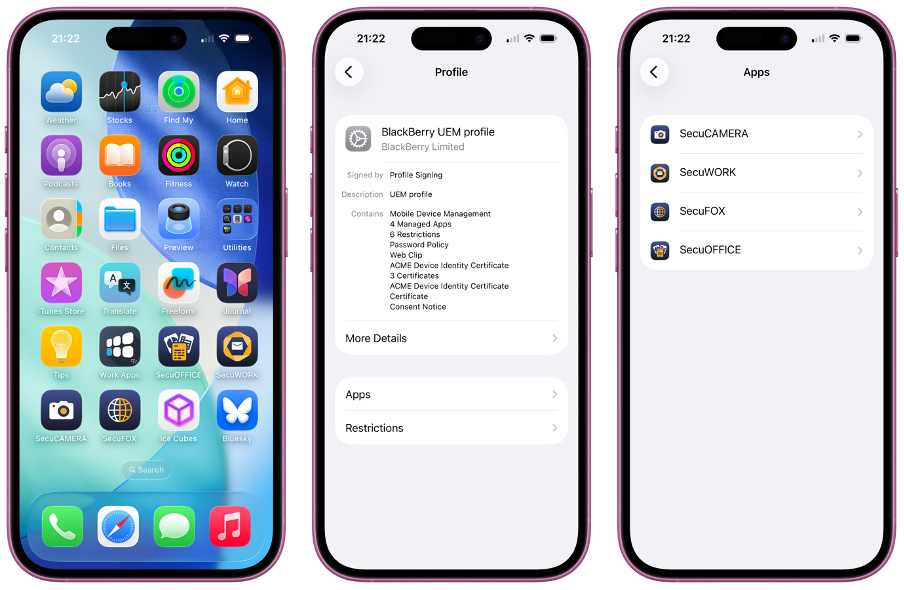
Screenshot iPhone MDM-Profil – verwaltete und unverwaltete Apps

Managed Distribution for Users ermöglicht den Entzug zugewiesener App-Lizenzen. Da die Anwendungen unverwaltet sind, werden sie nach dem Lizenzentzug nicht vom Endgerät entfernt. Nach Entzug der Lizenz kann der Benutzer die App noch bis zu 30 Tage weiterverwenden. Diese Funktion ist insbesondere bei kostenpflichtigen Apps relevant, da Lizenzen dadurch einem anderen Benutzer zugewiesen werden können, ohne erneut eine Lizenz erwerben zu müssen. Über den Lizenzentzug wird der Benutzer im App Store entsprechend informiert.
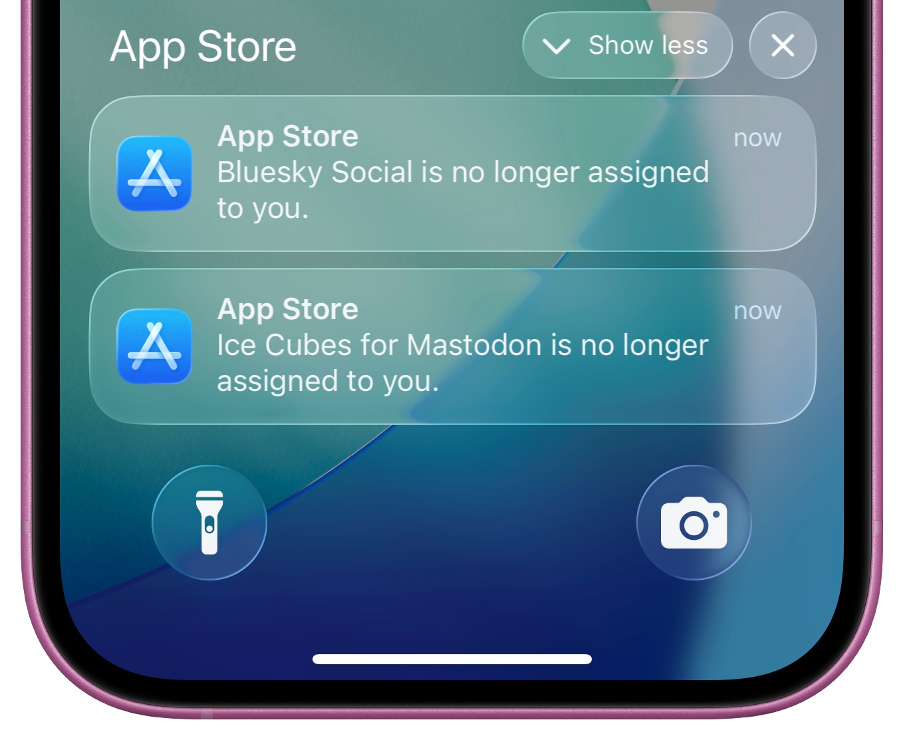
Screenshot iPhone App Store – Lizenzen für Bluesky und Ice Cubes wurden entzogen

Apple Intelligence per MDM deaktivieren

Apple hat heute iOS 18.4 veröffentlicht. Mit iOS 18.4 ist es nun ohne Umwege möglich Apple Intelligence in Deutschland zu nutzen. Nach einem Update auf iOS 18.4 wird der Nutzer aufgefordert Apple Intelligence einzurichten. Im Unternehmens- und Behördenumfeld wollt ihr Apple Intelligence gegebenenfalls deaktivieren. Dafür müssen die iPhones und iPads per MDM verwaltet sein. Dann könnt ihr den Geräten sogenannte SkipKeys mitgeben. Mit dem SkipKey Intelligence lässt sich die Aufforderung Apple Intelligence einzurichten ausblenden. Diese Aufforderung erscheint direkt nach dem iOS 18.4 installiert wurde und das iPhone oder iPad gebootet hat.

Im BlackBerry UEM müsst ihr dafür ein Custom Payload Profil erstellen. Dort fügt ihr den unten gezeigten XML-Text ein und weist es den Endgeräten bzw. Nutzern zu. Nach dem Update auf iOS 18.4 wird der Nutzer nicht mehr aufgefordert Apple Intelligence einzurichten.

<dict>
<key>SkipSetupItems</key>
<array>
<string>Intelligence</string>
</array>
<key>PayloadDisplayName</key>
<string>Post OS Update Skip Keys</string>
<key>PayloadIdentifier</key>
<string>com.example.mysetupassistantpayload</string>
<key>PayloadType</key>
<string>com.apple.SetupAssistant.managed</string>
<key>PayloadUUID</key>
<string>0dfccedc-e28f-4df5-bca7-a0807deab543</string>
<key>PayloadVersion</key>
<integer>1</integer>
</dict>

In der IT Policy, auch bekannt als MDM Restrictions, solltet ihr noch folgende Einstellungen deaktivieren damit der Nutzer diese Apple Intelligence Funktionen nicht nutzen kann:

  • Allow Genmoji
  • Allow image playground
  • Allow image wand
  • Allow mail summary
  • Allow personalized handwriting results
  • Allow writing tools
  • Allow external intelligence integrations
  • Allow external intelligence integrations sign-in
  • Allowed external intelligence workspace IDs
  • Allow Mail smart replies
  • Allow Notes transcription
  • Allow Notes transcription summary
  • Allow Safari summary
  • Allow Visual Intelligence summary
  • Allow Apple Intelligence Report

Damit diese Richtlinien und der SkipKey greifen, müssen die iPhones und iPads supervised sein. Eine reine MDM-Aktivierung reicht nicht aus. Die genannten Einstellungen lassen sich auch in anderen MDM-Lösungen vornehmen. Eine direkte Übernahme des oben gezeigten XML-Beispiels wird in der Regel nicht möglich sein. Bei anderen MDM-Lösungen benötigt ihr eine vollständige .mobileconfig-Datei. Für Details müsst ihr in die Dokumentation eures MDM-Herstellers schauen.

Nutzen eure Anwender BlackBerry Dynamics, dann solltet ihr in der BlackBerry Dynamics Policy noch die Einstellung Allow Apple Intelligence in-app writing tools deaktivieren. Mehr muss man nicht tun um Apple Intelligence auf den verwalteten iPhones und iPads zu deaktivieren.

Und wie immer gilt mein Rat: testet eure Apps und Konfigurationen mit iOS 18.4 bevor ihre das Update für eure Nutzer erlaubt.

Geräte per Apple Business Manager am BlackBerry UEM aktivieren

Am BlackBerry UEM gibt es drei im Alltag relevante Optionen iPhones und iPads über den Apple Business Manager (ABM) zu aktivieren:

  1. Direkte Zuweisung des Gerätes an einen Benutzer in der BlackBerry UEM-Konsole unter Users-> Apple DEP devices
  2. Aktivierung über ein vorher gesetztes Aktivierungskennwort
  3. Aktivierung über die Active Directory Anmeldedaten

Technisch wären auch eine Aktivierung über einen Identity Provider und über den Apple Configurator möglich. Auf diese beiden Optionen gehe im Folgenden nicht ein. Für alle drei Optionen müssen die Geräte im Apple Business Manager (ABM) existieren. Sobald sie dort gelistet sind, kann man sie der jeweiligen BlackBerry UEM Instanz zuweisen. Nach der Synchronisation des BlackBerry UEM mit dem ABM, erscheinen die Geräte in der UEM-Konsole unter Users-> Apple DEP devices. Die Synchronistation der Geräteliste mit dem ABM erfolgt alle 24 Stunden. Die Synchronisation lässt sich auch manuell anstoßen. Aus der Geräteliste heraus kann das Gerät direkt einem Benutzer zugewiesen. Die Aktivierung erfolgt ohne Eingabe weiterer Anmeldedaten. Diese Aktivierungsart ist z.B. für Kiosk-Mode-Szenarien sinnvoll. Damit wäre die erste Option aus der obigen Liste abgedeckt.

Für die Option 2, der Aktivierung per E-Mail-Adresse und Aktivierungskennwort, muss im Feld Benutzername die E-Mail-Adresse des Benutzers eingetragen werden. Das Aktivierungskennwort hat der Benutzer per E-Mail erhalten bzw. wurde durch den UEM-Administrator in der UEM-Konsole gesetzt und dem Benutzer mitgeteilt. Das Aktivierungskennwort kann der Benutzer auch selbstständig im Self Service Portal des BlackBerry UEM setzen. Im folgenden Beispiel hat der Benutzer die E-Mail-Adresse aboui@lab.boui.de. Nach Eingabe des Aktivierungskennworts im Feld Passwort, kann die Aktivierung am UEM über den ABM erfolgen.

iPhone-Aktivierung über E-Mail-Adresse
iPhone-Aktivierung mit E-Mail-Adresse und Aktivierungskennwort

Für die Option 3, Aktivierung per Active Directory Anmeldeinformatione, müssen die Daten im Eingabefeld Benutzername im Format FQDN\Username eingetragen werden. In meinem Beispiel laut der FQDN der AD-Domain LAB.BOUI.DE. Der Username lautet aboui. Folglich muss in dem Feld Benutzername folgendes eingetragen werden: lab.boui.de\aboui. Da das Eingeben des Zeichens \ am iPhone nicht einfach ist, kann man alternativ das Zeichen / verwenden. Mit beiden Zeichen funktioniert die Anmeldung. Dass der FQDN in meinem Beispiel identisch mit dem Teil nach dem @-Zeichen aus Option 2 ist, ist reiner Zufall. Das könnte und dürfte in den meisten Umgebungen sehr wahrscheinlich unterschiedlich sein.

iPhone-Aktivierung per Active Directory Anmeldeinformationen
iPhone-Aktivierung mit Active Directory Anmeldeinformationen

Falls der FQDN der AD-Domain nicht bekannt ist, kann man sich den FQDN in der Kommandzeile auf einem Windows-Rechner einfach anzeigen lassen. Dafür reicht der Befehl set userdnsdomain.

Ausgabe der Kommandozeile für den Befehl set userdnsdomain

Mit der dritten Option ist es für einen Benutzer oder eine Benutzerin ganz einfach sein iPhone oder iPad zu aktivieren. Viele meiner Kunden nutzen diese dritte Option, weil es den Benutzern ermöglich die Geräte ohne IT-Unterstützung bzw. direkten Zugriff auf das eigene E-Mail-Postfach zu aktivieren. Das ist z.B. bei größeren Geräterollouts oder beim Austausch des iPhones oder iPads sehr hilfreich.

Configure certificate-based VPN authentication in BlackBerry UEM for iPhones and iPads

If you want to use IKEv2-based VPNs for per Account and per App VPN and require certificate-based authentication, I will explain the required steps to make use of this in BlackBerry UEM. The below configuration assumes that the VPN username and actual username are different, e.g., vpnuser001@boui.de is the VPN username and abdelkader@boui.de is the username. The certificate for the VPN authentication is issued to the VPN username.

  1. Enable the use of custom variables in BlackBerry UEM. We will need this later on as this gives us a simple way to map the VPN certificate to the actual user account.
    • Login to the UEM console
    • Navigate to Settings-> General settings-> Custom variables
    • Enable the checkbox “Show custom variables when adding or editing a user”
    • For the variable %custom1% set the label to vpn_user_iphone
    • For the variable %custom2% set the label to vpn_user_ipad

    • It is necessary to differentiate between iPhone and iPad VPN accounts as in my setup I need to use one VPN certificate per device.
    • Click on Save.
  2. Configure the custom variables in user account
    • Navigate to Users-> All Users in the UEM console
      • Search for the user account you want to modify and open the user view
      • Click on the Edit button in the top right corner
      • In the new view navigate to the bottom and expand the section Custom variables. Enter the VPN username for the iPhone and iPad, respectively.

      • Click on Save.
  3. Create the two user credential profile – one for iPhones and one for iPads
    • In the UEM console navigate to Policies and profiles-> Managed devices-> Certificates-> User credential
    • Click on the plus symbol to create a new user credential profile
    • In the name field enter the name for the profile, e.g. vpn_user_iphone_certificate
    • In the drop-down list for Certificate authority connection select Manually uploaded certificate
    • Disable the checkboxes for macOS and Android
    • Click on Add to save the profile
    • Repeat the previous steps and create the user credential profile we will use with for the iPads, e.g., vpn_user_iphone_certificate
  4. Create the IKEv2 VPN profile
    • In the UEM console navigate to Policies and profiles-> Managed devices-> Networks and Connections-> VPN
    • Click on the plus symbol to create a new VPN profile
    • In the field Name enter a name for the profile, e.g., iphone_vpn_profile
    • As we will use the VPN profile only for iPhones and iPads, you can disable the checkboxes for macOS, Android and Windows
    • In the drop-down list Connection type select IKEv2
    • For Remote address enter your VPN gateway FQDN, e.g., vpngw.boui.de
    • For Local ID enter %custom1%
    • For Remote ID enter the remote ID of your VPN gateway, e.g., vpngw.boui.de
    • In the drop-down list Authentication type select User credential
    • We will get a new drop-down list named Associated user credential profile. Select the user credential profile we created for iPhones. In our case it is named vpn_user_iphone_certificate. This selection now gives us the mapping between the custom variable we have entered in Local ID and the VPN certificate, which we will assign to the user further down in this guide.
    • Confirm that Enable per-App VPN and Allow apps to connect automatically are enabled.
    • It is optional to add any domains. We will skip that for now.
    • In the drop-down list Traffic tunnelling confirm that Application layer is selected
    • All other settings depend on the requirements of your VPN solution. Configure the remaining as required.
    • Click on Add to save the VPN profile.
    • Open the newly created VPN profile and click on the Copy VPN profile button in the top right corner
    • You only need to change two values – the profile name and the Local ID
    • For the profile name we will use vpn_profile_ipad
    • For the Local ID we will change the value to %custom2% as this is the custom variable we are using for our setup to authenticate the iPad
    • All other settings will remain the same.
    • Click on Save to save to copied profile
    • The two newly created VPN profiles should look like the below screenshot
  5. Assign the user credential profiles to the user
    • To make easier user of the user credential profiles, I have created two user groups in BlackBerry UEM – one for iPhone users, one for iPad users
    • The user credential profiles we created, are assigned to the respective group as shown in the below screenshot, e.g., the iPhone user credential profile is assigned to the iPhone user group and the iPad user credential profile is assigned to the iPad user group
    • Our test user is member of both groups
    • We are now have the option to add the two certificates to the user
    • In our setup we have two VPN user certificates – one issued to vpn001@boui.de for the iPhone and the other issued to vpn002@boui.de to be used with the iPad. We will add the certificates to user by click on Add a certificate. We will be prompted for the password of the private key when we upload it to the UEM server. Make sure you have the relevant passwords at hand when adding the certificates. After the certificates were successfully added, the view should be like the screenshot shown below


Our VPN setup in BlackBerry UEM is now completed. As we are differentiating between iPads and iPhones, I would recommend doing the app assignment, to use per App VPN, and mail profile, for the per Account VPN, through device groups. If you are planning to use per Account VPN in the email profile, you will require one mail profile per device type. For a simple setup, set the device query in the device group to Model Starts with iPhone and scope the device group to the iPhone users’ group. For the iPad group change the value to Model Starts with iPad and modify the user groups scope to the iPad users. When assigning the apps to the device groups, make sure to use the correct VPN profile.

The screenshot below shows the device group setup for iPhone and configured with an email profile and the app SecuFOX to use the per App VPN tunnel. The per Account VPN configuration for the email profile is not shown in the screenshot. You can add additional profiles and apps to the device group as required.

iPhone season is getting closer

In a few weeks’ time Apple will launch new iPhones and a new OS version: iOS 18. We should also see an iPadOS 18 update. As usual, many users will immediately jump onto the new iOS version as soon as it is available to the public. If you are an organisation that issues iPhones and iPads to their end users through Apple Business Manager and an MDM solution, I would recommend to not immediately do the upgrade to the new iOS version. Through your MDM solution Apple allows you to delay the update on supervised devices for up to 90 days. This gives you ample time to test all your business applications and confirm that they work properly with iOS 18 and iPadOS 18. When the tests are finished successfully, your users can safely do the upgrade to iOS 18 and iPadOS 18. And you can rest assured that you will not be flooded with support requests related to the upgrade.

My recommendation is to delay the updates for 30 days and then go through your test plan. Should you encounter issues during the testing that need to be addressed by Apple, your MDM supplier or any 3rd party app developer, you can easily extend the 30 days as required and work on having the issues resolved.

With BlackBerry UEM delaying the software updates is easy and simple. All you need to do is modify the IT policy assigned to your users or their devices and enable “Delay software updates (supervised)” and set a value for “Software update delay period (supervised only)”. The screenshot below shows an “IT Policy” with the delay enabled for 30 days. Other MDM solutions usually give you similar options to configure the software update delay. Good luck with your testing!