iPhone season is getting closer

In a few weeks’ time Apple will launch new iPhones and a new OS version: iOS 18. We should also see an iPadOS 18 update. As usual, many users will immediately jump onto the new iOS version as soon as it is available to the public. If you are an organisation that issues iPhones and iPads to their end users through Apple Business Manager and an MDM solution, I would recommend to not immediately do the upgrade to the new iOS version. Through your MDM solution Apple allows you to delay the update on supervised devices for up to 90 days. This gives you ample time to test all your business applications and confirm that they work properly with iOS 18 and iPadOS 18. When the tests are finished successfully, your users can safely do the upgrade to iOS 18 and iPadOS 18. And you can rest assured that you will not be flooded with support requests related to the upgrade.

My recommendation is to delay the updates for 30 days and then go through your test plan. Should you encounter issues during the testing that need to be addressed by Apple, your MDM supplier or any 3rd party app developer, you can easily extend the 30 days as required and work on having the issues resolved.

With BlackBerry UEM delaying the software updates is easy and simple. All you need to do is modify the IT policy assigned to your users or their devices and enable “Delay software updates (supervised)” and set a value for “Software update delay period (supervised only)”. The screenshot below shows an “IT Policy” with the delay enabled for 30 days. Other MDM solutions usually give you similar options to configure the software update delay. Good luck with your testing!

Requirements for Apple software updates

Most of my customers who are issuing smartphones and tablets to their employees, usually give their users iPhones and iPads. As I have outlined in my previous post, a big challenge is to keep these devices up to date. I often get asked which requirements need to be met for the OS software updates to be done automatically or manually by the user. Until recently, there was not much public information from Apple on this topic for iOS and iPadOS devices. This support article was recently updated by Apple and now includes helpful details on the criteria that need to be met for the iOS updates to work, e.g. network requirements and power requirements. For a user-initiated update, the device needs to have a battery percentage of at least 20%. Rapid Security Response updates can be installed while the battery percentage is at 5% and the device is connected to power. If you are managing iPhones and iPads, I recommend you to read the support article. Previously most of the information was only available on Apple’s AppleSeed portal and covered under NDA.

Enforce software updates for iOS devices

During last year’s WWDC Apple provided MDM vendors a new way to enforce software updates on iOS devices which are supervised. This is a big improvement over the previous options as users are no longer able to skip or circumvent these updates. The new feature allows administrators to set a deadline by which the update must be installed. The user always has the option to install the update prior to the date set through the MDM solution. This week’s release of iOS 17.6 gave me an opportunity to test this feature with our BlackBerry UEM. I was curious to see which notifications a user would get on their device as the WWDC23 video only shows the notifications for macOS. The first screen shows that the MDM has enforced an iOS update and by when the update will be installed. The second and third screen show the respective notifications 12 hours and one week before the update is due.

USB-Sticks ans iPhone und iPad anschließen

Die App „Dateien“ auf dem iPad und iPhone hat ein praktisches Feature, das gerne übersehen wird: Man kann USB-Sticks anschließen und auf die dort liegenden Dateien direkt zugreifen. Ganz praktisch ist das auf iPhones und iPads mit USB-C-Port. Dort benötigt man keine weiteren Adapter. Es reicht ein Stick mit USB C-Stecker. Bei Geräten mit Lightning-Port benötigt man Apples Lightning auf USB 3 Kamera-Adapter. Je nach USB-Stick muss man bei dem Kamera-Adapter ein Netzteil einstecken. Das iPhone bzw. iPhone weisen darauf hin, falls das notwendig ist. Laut Apple werden folgende Dateisysteme auf den USB-Sticks unterstützt: “APFS, APFS (verschlüsselt), macOS Extendet (HFS+) exFAT (FAT64) oder FAT”. So lassen sich einfach auch größere Dateien von und zum iPhone oder iPad übertragen. Dies funktioniert auch mit externen SSDs bzw. Festplatten und SD-Karten. Verfügbar ist diese Funktion für Geräte ab iOS 13 und iPadOS 13.

Some hidden gems in iOS

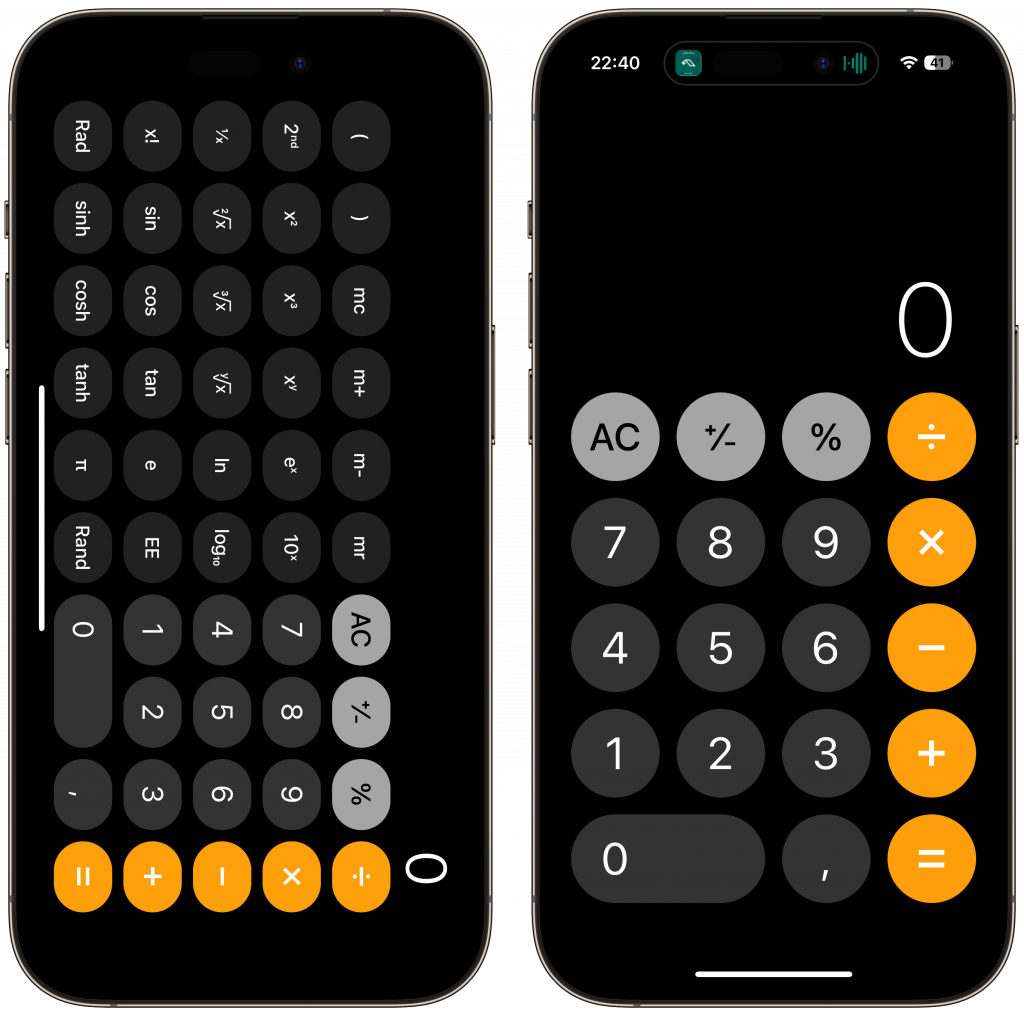
You may have seen this years ago, but many have not. The Calculator app has two calculators: the standard calculator that you have used all the time, plus a scientific calculator which you get by turning the phone sideways, like you would do with a landscape photo.

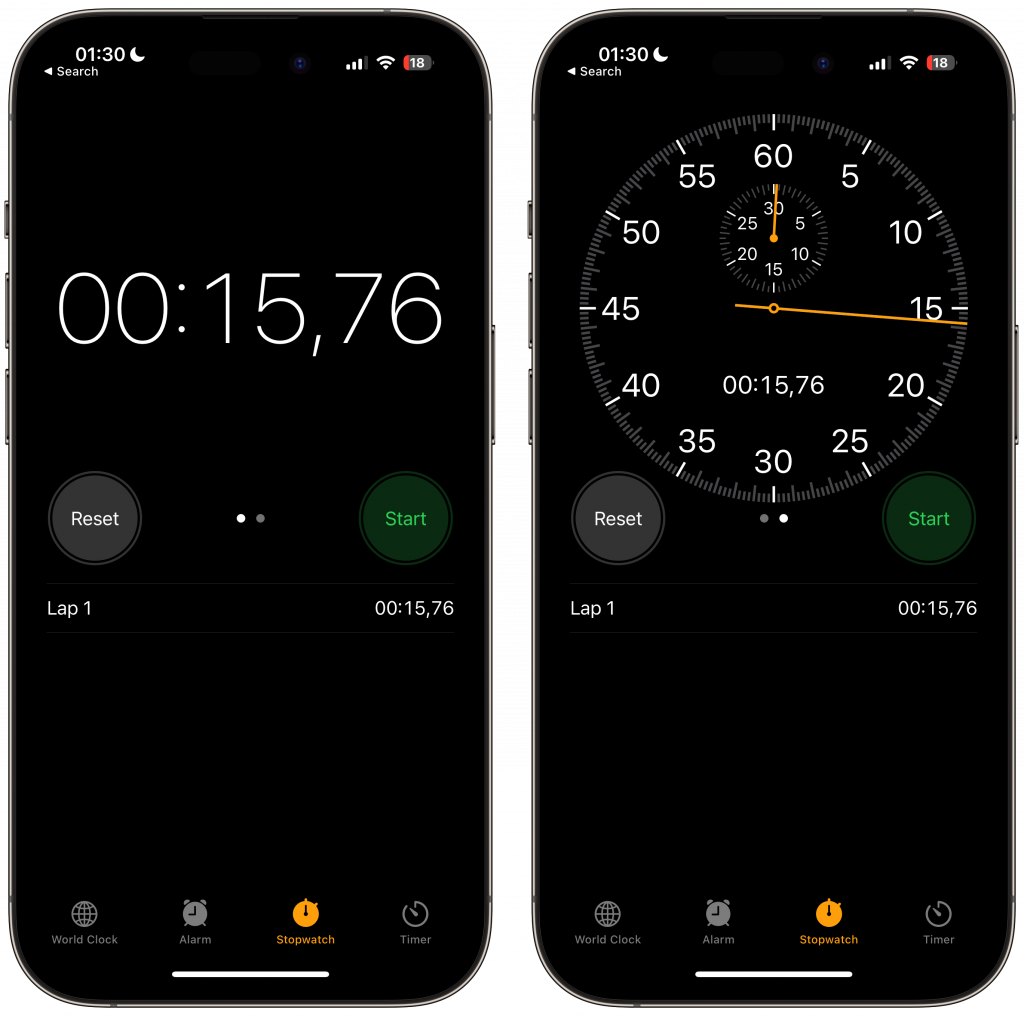
What I just learned yesterday is that you have two stopwatches. It’s very difficult to watch progress on the digital stopwatch, but when you swipe to the left you get a beautiful analog stopwatch (with a digital inset).

Can you teach me more of those tricks with built-in apps? Not looking for apps to install but useful features that are not obvious.

Don’t use in-app browsers

To fight Apple’s privacy protection Facebook, Instagram et al have found a way to track everything you do, by drawing you into their in-app browser and then injecting a surveillance Javascript. If you want to see what they actually do, just forward a link to InAppBrowser.com within the app and click it.

Introducing InAppBrowser.com, a simple tool to list the JavaScript commands executed by the iOS app rendering the page.

With Android, don’t even bother.